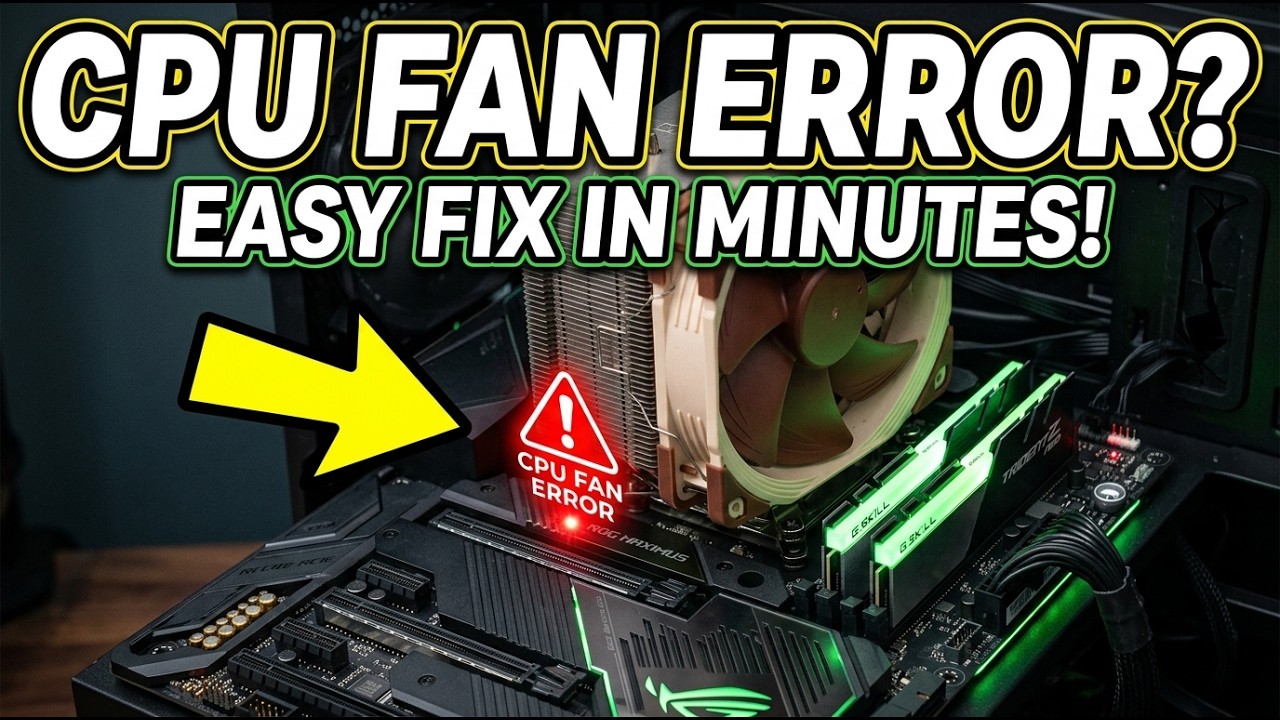
CPU Fan Error Press F1 to Run Setup? | Complete Fix Guide for Windows PC | Fix CPU Fan Error
? Stay Connected:
? Subscribe Now & Start Your Web Development Journey Today!
? [https://www.youtube.com/channel/UCqLYJkKUl5WqdlsoU_5Q9IQ]
Like Facebook page for more Like Facebook page for more update and Videos :https://www.facebook.com/TheTechNerdBD/
CPU Fan Error Press F1 to Run Setup? | Complete Fix Guide for Windows PC | Fix CPU Fan Error
Is your PC showing the “CPU Fan Error! Press F1 to Run Setup” message every time you start your computer? Don't worry. This video provides a complete step-by-step guide to diagnosing and fixing CPU fan errors on Windows PCs. Whether you are using Windows 10, Windows 11, a gaming PC, a custom-built desktop, or a workstation computer, this tutorial will help you understand why the CPU fan error appears and how to solve it safely.
A CPU fan is one of the most important cooling components inside a computer. It keeps the processor temperature under control and prevents overheating. When the motherboard detects that the CPU fan is not spinning correctly, is spinning too slowly, or is not connected properly, it may stop the boot process and display a warning message such as “CPU Fan Error Press F1 to Run Setup.” This safety feature is designed to protect your processor from heat damage and system instability.
Many users become worried when they see this error because they think their processor, motherboard, or operating system is damaged. In reality, the issue is often related to a loose fan connection, incorrect BIOS settings, dust buildup, low fan speed, a failing fan, or hardware monitoring settings. In this tutorial, you will learn how to identify the exact cause and apply the correct fix.
This video covers the most common reasons behind CPU fan errors and explains each solution in a beginner-friendly way. You will learn how motherboard fan headers work, why BIOS fan monitoring is important, and how modern computers protect themselves from overheating. Understanding these concepts can help you troubleshoot similar hardware problems in the future.
If your computer displays CPU Fan Error during startup, there are several possible causes. The CPU cooler may not be connected to the dedicated CPU_FAN header. The cooling fan might be spinning below the minimum RPM threshold configured in the BIOS. Dust accumulation may prevent the fan from rotating efficiently. A damaged fan cable or failing fan motor can also trigger the warning. In some cases, BIOS updates or hardware changes can alter fan monitoring settings and cause the error to appear unexpectedly.
This tutorial explains how to inspect your CPU cooling system safely and correctly. You will learn how to check fan cables, verify proper installation, clean dust from cooling components, and ensure that airflow inside the computer case remains optimal. Proper cooling is essential for maintaining stable performance, extending hardware lifespan, and preventing unexpected shutdowns.
Many users experience this problem after cleaning their PC, replacing hardware components, upgrading their CPU cooler, or updating their BIOS settings. If you recently installed a new CPU cooler and started seeing CPU Fan Error messages, this guide can help you verify the installation and correct any configuration issues.
The video also explains how BIOS and UEFI firmware monitor fan performance. Modern motherboards continuously track CPU fan speed using RPM sensors. If the motherboard detects that the fan speed falls below a predefined limit, it may generate a warning to protect the processor. Understanding this process makes troubleshooting easier and helps you determine whether the issue is hardware-related or configuration-related.
Another common cause of CPU Fan Error is incorrect fan header usage. Some users accidentally connect the CPU cooler to a chassis fan header instead of the dedicated CPU_FAN connector. As a result, the motherboard cannot detect the fan properly and displays an error during startup. This tutorial explains how to identify the correct header and verify that the fan is connected properly.
Dust is another major factor that affects cooling performance. Over time, dust accumulates on fan blades, heatsinks, air vents, and filters. Excessive dust can reduce airflow and prevent the cooling system from operating efficiently. This video discusses proper maintenance practices and cleaning techniques that can help prevent fan-related errors and improve overall system cooling.
For gaming PC users, workstation users, and content creators who run demanding applications, CPU cooling becomes even more critical. Heavy workloads generate significant heat, making a properly functioning CPU fan essential for system stability. If cooling performance is compromised, users may experience thermal throttling, crashes, unexpected restarts, or reduced performance. This guide helps ensure your cooling system remains reliable.
? Subscribe Now & Start Your Web Development Journey Today!
? [https://www.youtube.com/channel/UCqLYJkKUl5WqdlsoU_5Q9IQ]
Like Facebook page for more Like Facebook page for more update and Videos :https://www.facebook.com/TheTechNerdBD/
CPU Fan Error Press F1 to Run Setup? | Complete Fix Guide for Windows PC | Fix CPU Fan Error
Is your PC showing the “CPU Fan Error! Press F1 to Run Setup” message every time you start your computer? Don't worry. This video provides a complete step-by-step guide to diagnosing and fixing CPU fan errors on Windows PCs. Whether you are using Windows 10, Windows 11, a gaming PC, a custom-built desktop, or a workstation computer, this tutorial will help you understand why the CPU fan error appears and how to solve it safely.
A CPU fan is one of the most important cooling components inside a computer. It keeps the processor temperature under control and prevents overheating. When the motherboard detects that the CPU fan is not spinning correctly, is spinning too slowly, or is not connected properly, it may stop the boot process and display a warning message such as “CPU Fan Error Press F1 to Run Setup.” This safety feature is designed to protect your processor from heat damage and system instability.
Many users become worried when they see this error because they think their processor, motherboard, or operating system is damaged. In reality, the issue is often related to a loose fan connection, incorrect BIOS settings, dust buildup, low fan speed, a failing fan, or hardware monitoring settings. In this tutorial, you will learn how to identify the exact cause and apply the correct fix.
This video covers the most common reasons behind CPU fan errors and explains each solution in a beginner-friendly way. You will learn how motherboard fan headers work, why BIOS fan monitoring is important, and how modern computers protect themselves from overheating. Understanding these concepts can help you troubleshoot similar hardware problems in the future.
If your computer displays CPU Fan Error during startup, there are several possible causes. The CPU cooler may not be connected to the dedicated CPU_FAN header. The cooling fan might be spinning below the minimum RPM threshold configured in the BIOS. Dust accumulation may prevent the fan from rotating efficiently. A damaged fan cable or failing fan motor can also trigger the warning. In some cases, BIOS updates or hardware changes can alter fan monitoring settings and cause the error to appear unexpectedly.
This tutorial explains how to inspect your CPU cooling system safely and correctly. You will learn how to check fan cables, verify proper installation, clean dust from cooling components, and ensure that airflow inside the computer case remains optimal. Proper cooling is essential for maintaining stable performance, extending hardware lifespan, and preventing unexpected shutdowns.
Many users experience this problem after cleaning their PC, replacing hardware components, upgrading their CPU cooler, or updating their BIOS settings. If you recently installed a new CPU cooler and started seeing CPU Fan Error messages, this guide can help you verify the installation and correct any configuration issues.
The video also explains how BIOS and UEFI firmware monitor fan performance. Modern motherboards continuously track CPU fan speed using RPM sensors. If the motherboard detects that the fan speed falls below a predefined limit, it may generate a warning to protect the processor. Understanding this process makes troubleshooting easier and helps you determine whether the issue is hardware-related or configuration-related.
Another common cause of CPU Fan Error is incorrect fan header usage. Some users accidentally connect the CPU cooler to a chassis fan header instead of the dedicated CPU_FAN connector. As a result, the motherboard cannot detect the fan properly and displays an error during startup. This tutorial explains how to identify the correct header and verify that the fan is connected properly.
Dust is another major factor that affects cooling performance. Over time, dust accumulates on fan blades, heatsinks, air vents, and filters. Excessive dust can reduce airflow and prevent the cooling system from operating efficiently. This video discusses proper maintenance practices and cleaning techniques that can help prevent fan-related errors and improve overall system cooling.
For gaming PC users, workstation users, and content creators who run demanding applications, CPU cooling becomes even more critical. Heavy workloads generate significant heat, making a properly functioning CPU fan essential for system stability. If cooling performance is compromised, users may experience thermal throttling, crashes, unexpected restarts, or reduced performance. This guide helps ensure your cooling system remains reliable.

Full Course
This channel is about full courses any type of Content Software So Subscribe For Upcoming New Fully Free Course By Full course....