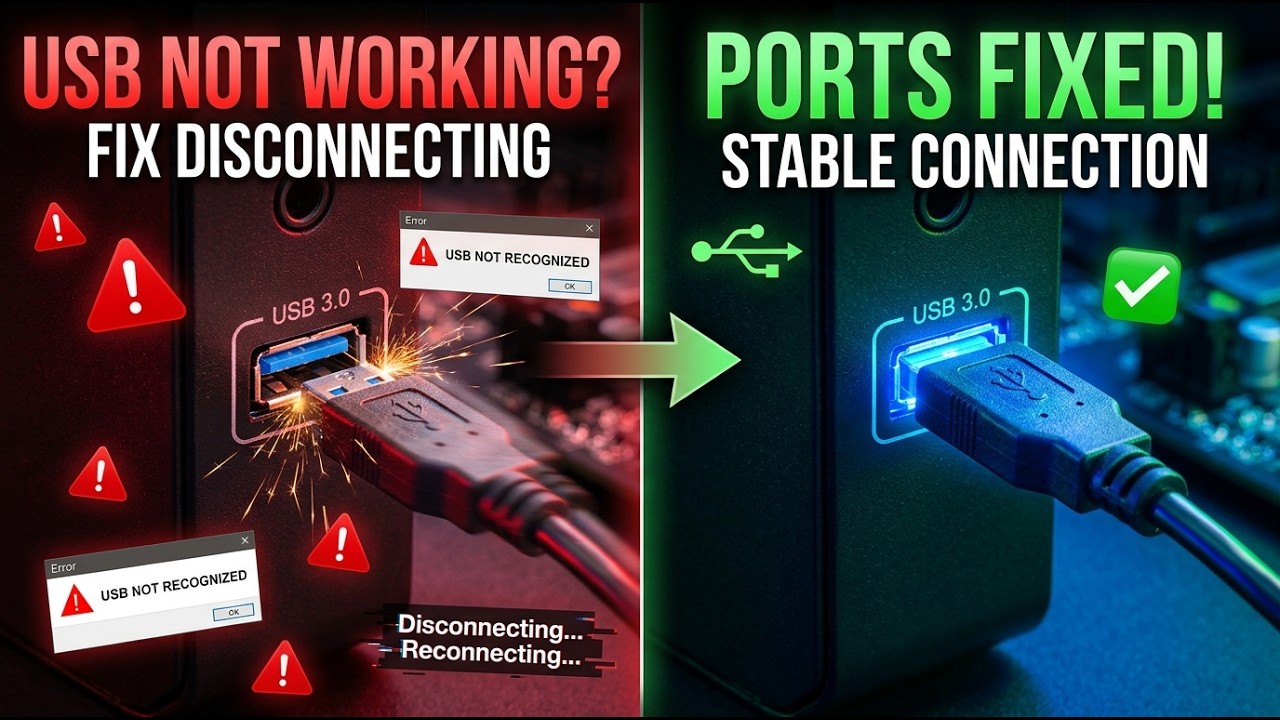
USB 3.0 Ports Not Working? | How to Fix USB Ports Disconnecting and Reconnecting (Solved) |
? Stay Connected:
? Subscribe Now & Start Your Web Development Journey Today!
? [https://www.youtube.com/channel/UCqLYJkKUl5WqdlsoU_5Q9IQ]
Like Facebook page for more Like Facebook page for more update and Videos :https://www.facebook.com/TheTechNerdBD
USB 3.0 Ports Not Working? | How to Fix USB Ports Disconnecting and Reconnecting (Solved) |
There is nothing more disruptive to your workflow or gaming session than the dreaded "USB disconnect" sound. One second your mouse is moving, and the next, everything freezes. If your USB 3.0 ports are randomly disconnecting and reconnecting, or if your devices aren't being recognized at all, you aren't alone. In this definitive 2026 troubleshooting guide, we are breaking down the top hardware and software fixes to stabilize your USB connections once and for all.
The Mystery of the Disconnecting USB
USB 3.0 and 3.1 ports are faster than their predecessors, but they are also more sensitive to power fluctuations and driver conflicts. When a USB device keeps cutting out, it’s usually due to one of three things: Aggressive Power Management, Outdated Chipset Drivers, or physical "Port Fatigue." We’ve designed this video to take you through a logical progression of fixes, starting with the most common software tweaks and moving into advanced system configurations.
Fix 1: The Power Management Secret
The most common reason for USB 3.0 ports "dropping" is a Windows feature called "USB Selective Suspend." While this is meant to save battery or power, it often mistakenly puts your active USB ports to sleep. We show you exactly how to dive into your Advanced Power Options to disable this setting. Additionally, we go into the Device Manager to uncheck the box that says "Allow the computer to turn off this device to save power" for every USB Root Hub. This ensures your ports stay "always-on" and ready for data transfer.
Fix 2: Updating the Chipset & Controller Drivers
Many users try to update the "Keyboard" or "Mouse" driver, but the real issue often lies with the Motherboard Chipset or the USB Controller itself. If your USB 3.0 eXtensible Host Controller driver is corrupt or outdated, your ports will behave erratically. We walk you through how to identify your motherboard model and download the latest "Inf" or "Chipset" drivers directly from the manufacturer to ensure perfect communication between your hardware and Windows 11/10.
Fix 3: Managing the USB Power Budget
Did you know that every USB port has a specific "power budget"? If you have too many high-draw devices (like RGB keyboards, external hard drives, and webcams) plugged into the same bus, the controller will "trip" and reset, causing the disconnect/reconnect loop. We explain how to use a powered USB hub to offload that power requirement, ensuring your motherboard isn't being overtaxed.
Fix 4: BIOS and UEFI Optimization
Sometimes the fix is deeper than Windows. We explore common BIOS settings like "XHCI Hand-off" and "Legacy USB Support." If these are misconfigured, your USB 3.0 ports might struggle to initialize properly during boot-up or high-speed data transfers. We provide a safe walkthrough on how to check these settings without risking your system stability.
Fix 5: The Physical Check & Port Fatigue
Lastly, we look at the hardware itself. Over time, USB ports can become loose or clogged with dust. We show you how to safely clean your ports and how to test for "port fatigue"—where the internal pins are no longer making a solid connection. If you are using a front-panel USB port on a PC case, we also discuss how to check the internal header cables to ensure they haven't wiggled loose from the motherboard.
By the end of this video, you will have a rock-solid USB setup. No more ghosting, no more input lag, and no more "device not recognized" errors. Let’s get your hardware back to 100% performance!
? Subscribe Now & Start Your Web Development Journey Today!
? [https://www.youtube.com/channel/UCqLYJkKUl5WqdlsoU_5Q9IQ]
Like Facebook page for more Like Facebook page for more update and Videos :https://www.facebook.com/TheTechNerdBD
USB 3.0 Ports Not Working? | How to Fix USB Ports Disconnecting and Reconnecting (Solved) |
There is nothing more disruptive to your workflow or gaming session than the dreaded "USB disconnect" sound. One second your mouse is moving, and the next, everything freezes. If your USB 3.0 ports are randomly disconnecting and reconnecting, or if your devices aren't being recognized at all, you aren't alone. In this definitive 2026 troubleshooting guide, we are breaking down the top hardware and software fixes to stabilize your USB connections once and for all.
The Mystery of the Disconnecting USB
USB 3.0 and 3.1 ports are faster than their predecessors, but they are also more sensitive to power fluctuations and driver conflicts. When a USB device keeps cutting out, it’s usually due to one of three things: Aggressive Power Management, Outdated Chipset Drivers, or physical "Port Fatigue." We’ve designed this video to take you through a logical progression of fixes, starting with the most common software tweaks and moving into advanced system configurations.
Fix 1: The Power Management Secret
The most common reason for USB 3.0 ports "dropping" is a Windows feature called "USB Selective Suspend." While this is meant to save battery or power, it often mistakenly puts your active USB ports to sleep. We show you exactly how to dive into your Advanced Power Options to disable this setting. Additionally, we go into the Device Manager to uncheck the box that says "Allow the computer to turn off this device to save power" for every USB Root Hub. This ensures your ports stay "always-on" and ready for data transfer.
Fix 2: Updating the Chipset & Controller Drivers
Many users try to update the "Keyboard" or "Mouse" driver, but the real issue often lies with the Motherboard Chipset or the USB Controller itself. If your USB 3.0 eXtensible Host Controller driver is corrupt or outdated, your ports will behave erratically. We walk you through how to identify your motherboard model and download the latest "Inf" or "Chipset" drivers directly from the manufacturer to ensure perfect communication between your hardware and Windows 11/10.
Fix 3: Managing the USB Power Budget
Did you know that every USB port has a specific "power budget"? If you have too many high-draw devices (like RGB keyboards, external hard drives, and webcams) plugged into the same bus, the controller will "trip" and reset, causing the disconnect/reconnect loop. We explain how to use a powered USB hub to offload that power requirement, ensuring your motherboard isn't being overtaxed.
Fix 4: BIOS and UEFI Optimization
Sometimes the fix is deeper than Windows. We explore common BIOS settings like "XHCI Hand-off" and "Legacy USB Support." If these are misconfigured, your USB 3.0 ports might struggle to initialize properly during boot-up or high-speed data transfers. We provide a safe walkthrough on how to check these settings without risking your system stability.
Fix 5: The Physical Check & Port Fatigue
Lastly, we look at the hardware itself. Over time, USB ports can become loose or clogged with dust. We show you how to safely clean your ports and how to test for "port fatigue"—where the internal pins are no longer making a solid connection. If you are using a front-panel USB port on a PC case, we also discuss how to check the internal header cables to ensure they haven't wiggled loose from the motherboard.
By the end of this video, you will have a rock-solid USB setup. No more ghosting, no more input lag, and no more "device not recognized" errors. Let’s get your hardware back to 100% performance!

Full Course
This channel is about full courses any type of Content Software So Subscribe For Upcoming New Fully Free Course By Full course....
Real-Life Decisions: Case Studies That Will Change Your Perspective | Real-Life Examples
Full Course
How to Extract Audio from Any Video File | Easy Step-by-Step Guide | Free & Easy Methods
Full Course